Get started
RSS Workshop runs as one Docker container, or as a single Linux executable, and keeps its data in a folder on your machine. This page installs it, builds a first feed, and covers upgrades and the other ways to run it.
Quickstart
With Docker Engine and the Compose plugin installed:
git clone https://github.com/Ldogg123/rss-workshop.git
cd rss-workshop
cp .env.example .env
chmod 600 .env
Set ADMIN_PASSWORD in .env to a password of your choosing. There is no default, and the server refuses to start without one.
Create the data directory. RSS Workshop runs as an unprivileged user inside the container and will not create this for you, so that a typo cannot silently start a fresh database somewhere unexpected:
sudo mkdir -p -m 700 ./data
sudo chown 65532:65532 ./data
docker compose up -d --pull always --wait
Open localhost:8080 and sign in. Use sudo docker if your account requires it. SQLite data lives in ./data/rss.db, and Compose pulls ghcr.io/ldogg123/rss-workshop:latest, the current stable image with Chromium.
Your first feed
- Choose New feed and enter a name and the page you want a feed from.
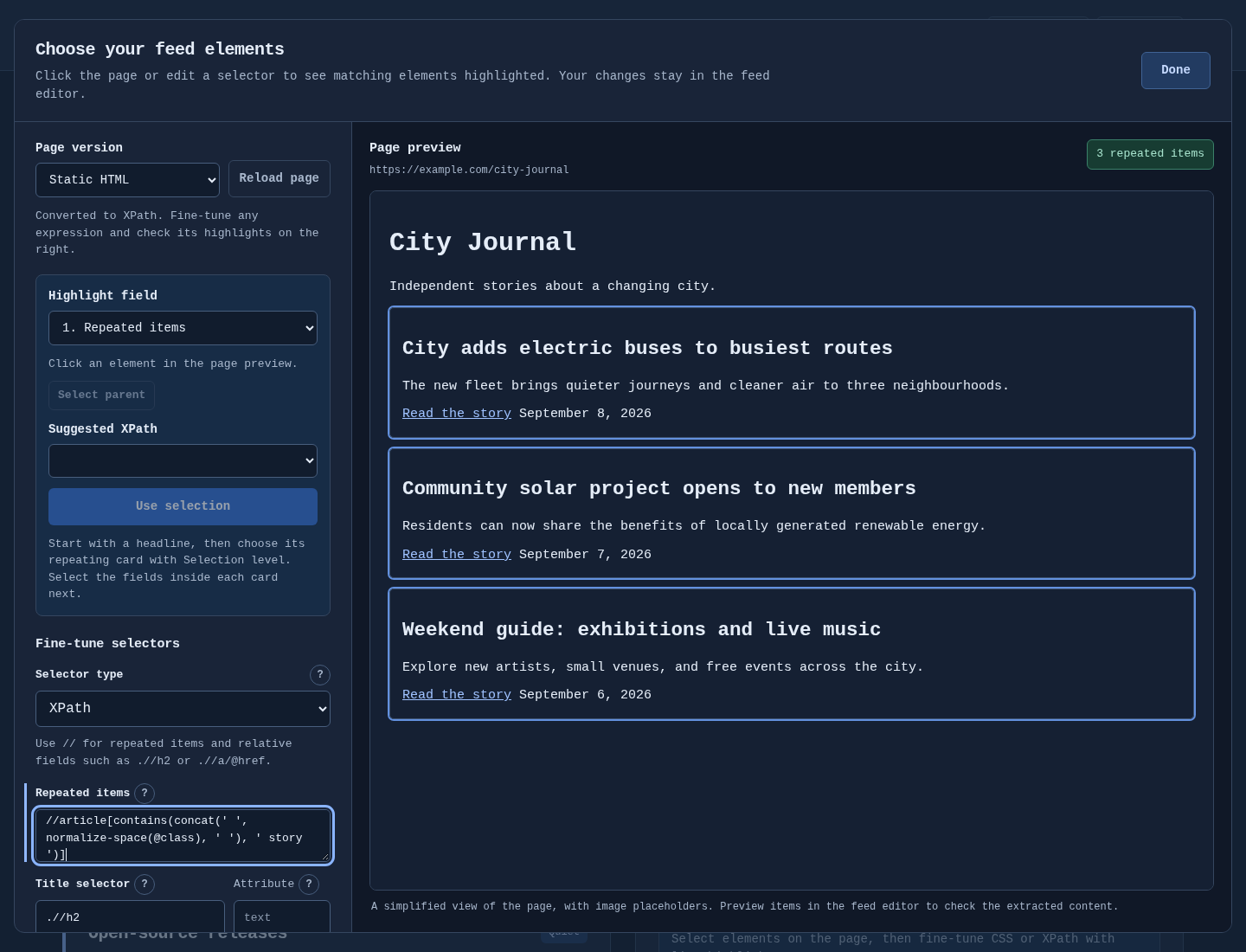
- Choose Choose elements visually. Click a repeating card on the page, then its title, link, description, image and date. Edit the CSS or XPath beside the live preview to fine-tune what matches.
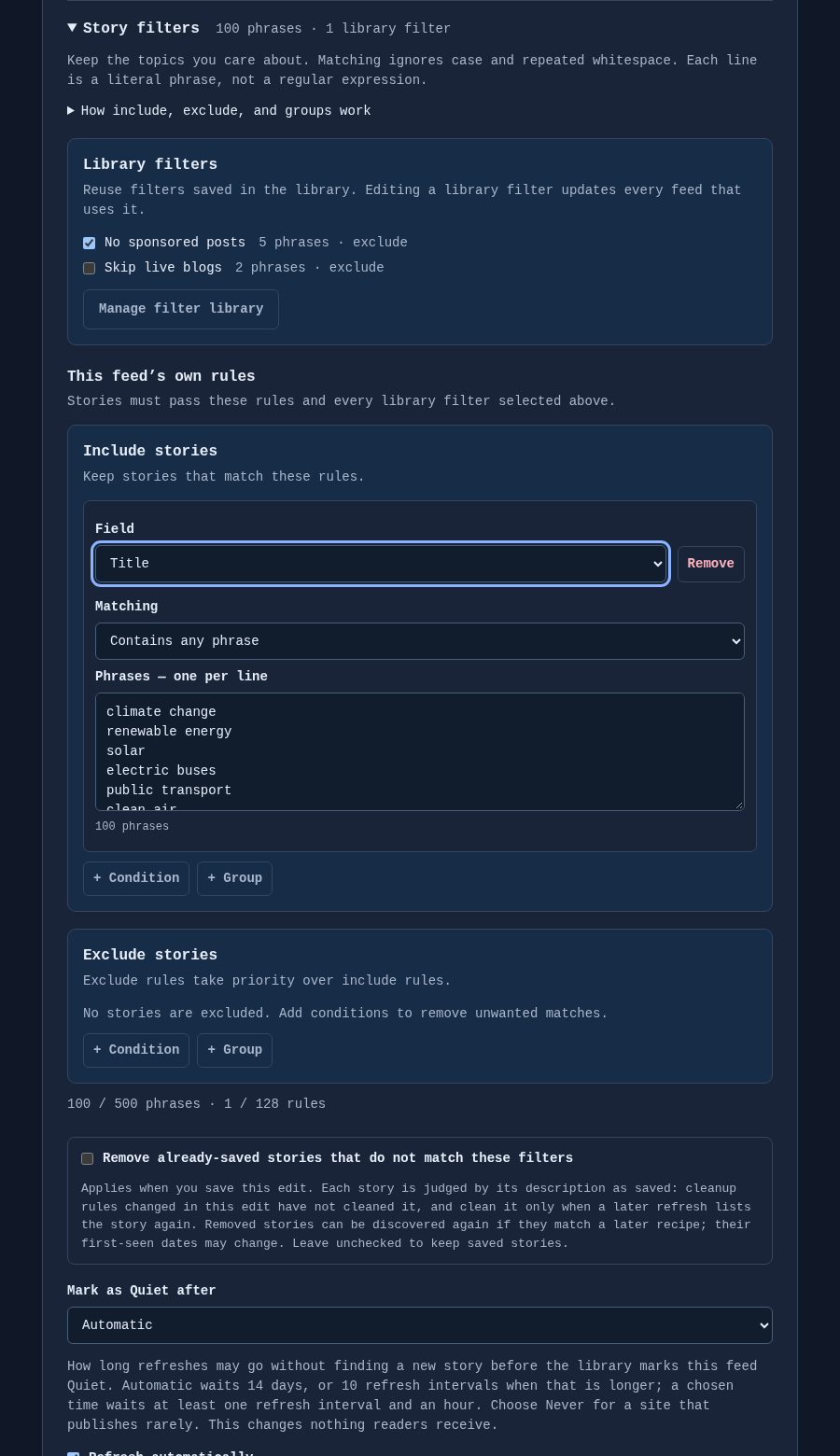
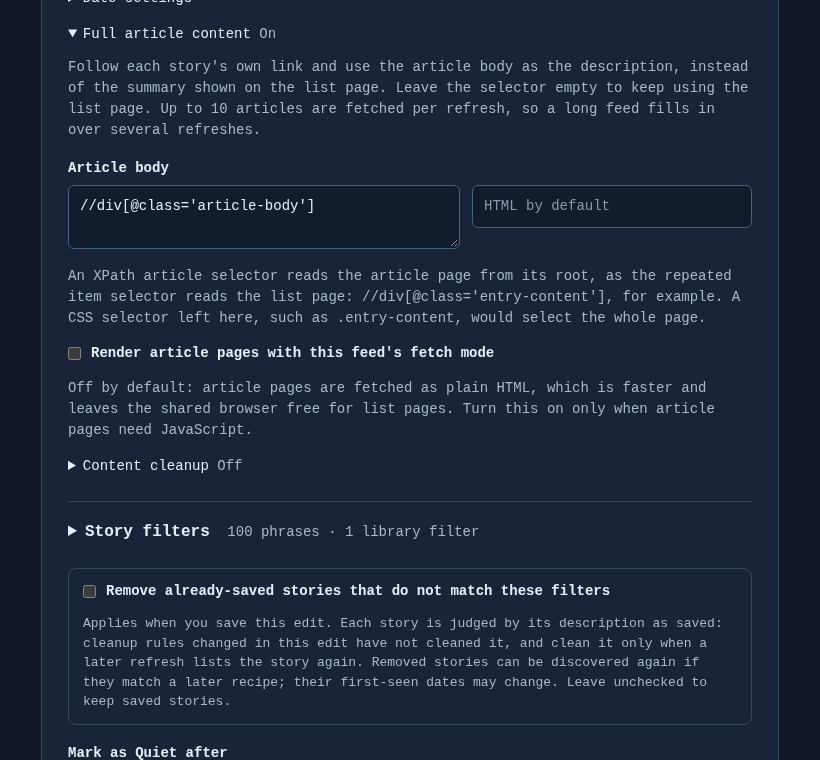
- Optionally turn on Full article content to publish each story’s own article body instead of the list-page teaser, and add Story filters to keep or drop stories by keyword.
- Choose Preview items to see exactly what a reader will receive, then save.
- Copy the RSS or Atom URL into your reader.
Already have a feed for the site? Choose Source → RSS or Atom feed instead of selecting elements, and the feed supplies every field: see feed sources.
To build another feed from the same site, such as a different section, or to try other selectors without touching a working feed, choose Duplicate on its card. The editor opens a copy with every setting and the same library filters; nothing is saved until you save it, and the copy gets its own reader links.
Prefer to see it working before pointing it at a real site? The repository ships a small demo newspaper and four ready-made recipes covering every field, XPath, filtering, full article content and an RSS feed source. Serve it, import the recipes, and preview: see examples. The documentation site publishes the same demo, so you can also try it without serving anything.
Reader requests serve saved stories and never fetch the source, so a slow or broken site cannot stall your reader, and a failed refresh keeps the last good output. Anyone holding a feed link can read it; Reset feed links revokes a feed’s existing URLs.
To subscribe to everything at once, choose Export OPML and import the file into your reader. It contains every feed link, so keep it private.
See the visual editor, story filters, the filter library, and full article content
Choose elements visually and refine CSS or XPath beside the highlighted source page:
Combine include and exclude groups, paste long keyword lists, and add filters saved in the library:
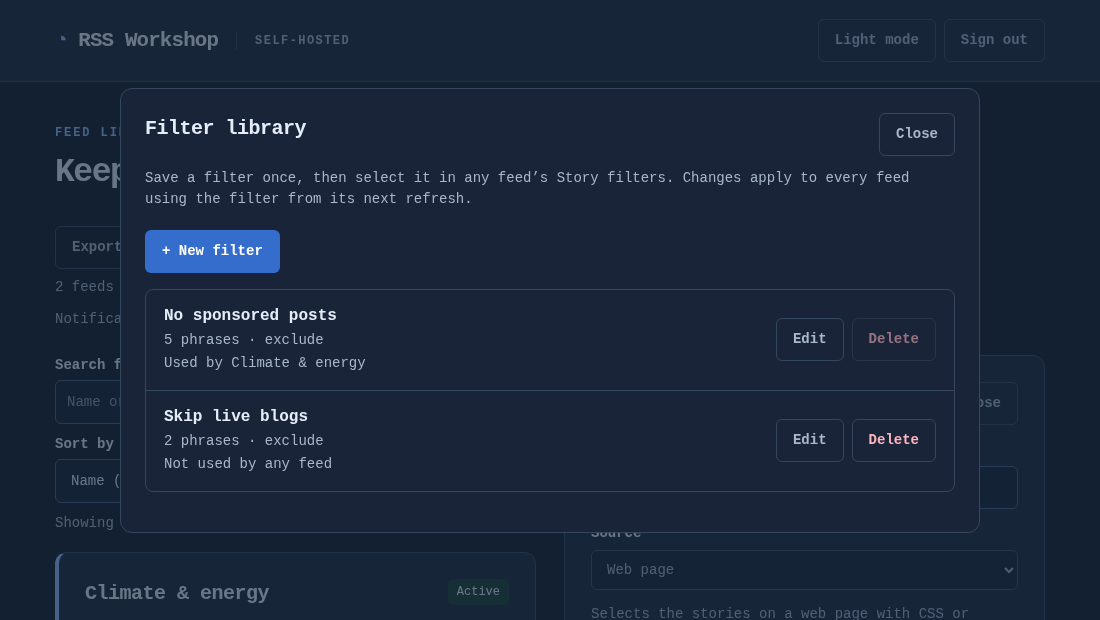
Save a filter once in the filter library and use it in any feed; editing it updates every feed that uses it:
Follow each story’s link and publish the article body rather than the teaser:
Screenshots use sample feeds.
When something breaks
Sites change their markup, and a feed that quietly stops updating is the usual symptom.
- The library marks a feed Quiet when its refreshes keep succeeding but none has found a new story for two weeks, or for ten refresh intervals if that is longer; each feed can choose its own time, or never. Search the library by name or site, filter it by status, and sort it by last change, last success or failures to find the feeds that need a look.
- Preview items explains why a story was rejected, field by field.
- A saved feed’s Diagnostics shows its last 50 refreshes with fetch mode, HTTP status, timing, match counts and field samples.
docker compose logs -f rss-workshopreports each refresh and the reason for any failure; setLOG_LEVELtowarnfor problems only.- Setting
METRICS_TOKENexposes/metricsfor Prometheus, including per-feed failure counts, the times of the last success, last change and last new story, and a count of quiet feeds, so an alert can name the feed that broke. - Without Prometheus, setting
NOTIFY_URLsends a message to an ntfy topic or a JSON webhook when a feed starts failing or recovers, or when the database stops storing or serving the library.
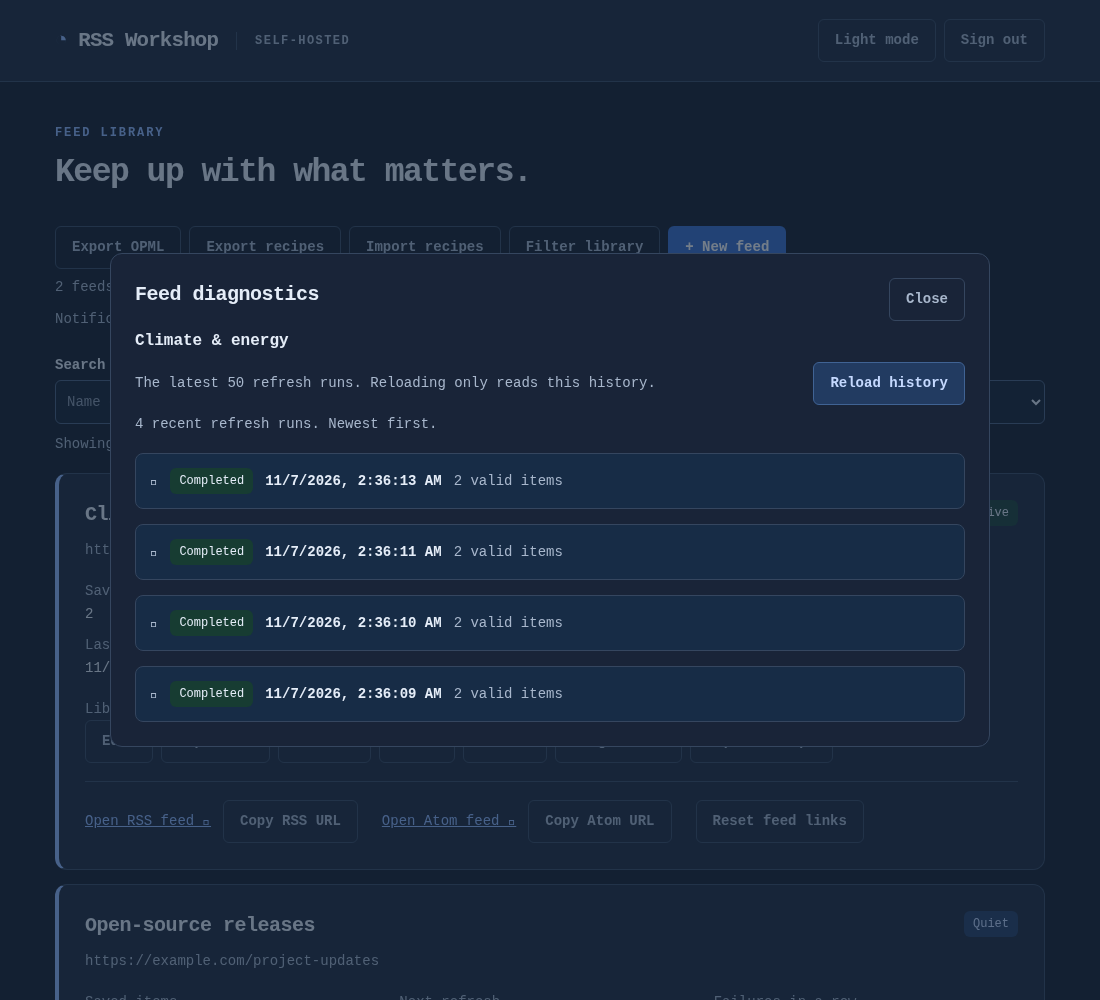
See the library dashboard, quiet feeds, notifications, diagnostics and retention and log detail.
Updates
After making a verified backup, update your checkout, then run the same command you installed with:
git pull
docker compose up -d --pull always --wait
Use the same Compose overrides as your installation. Every released database schema upgrades directly to the current one, in a single transaction, and an older release will refuse to open a newer database — so take the backup first. SQLite installs also get an automatic copy in backups/ inside the data directory before a schema upgrade. See upgrade compatibility and rollback.
Other ways to run
| Without Docker | Download a Linux amd64 or arm64 executable from Releases. It includes the web UI and SQLite; Go and Docker are not needed. See native installation. |
| Behind a reverse proxy | For HTTPS and remote access. A proxy running in Docker needs compose.proxy.yaml; see reverse proxy. |
| Without Chromium | compose.static.yaml selects a much smaller image for sites that need no JavaScript rendering. |
| With PostgreSQL | compose.postgres.yaml adds a database service. See PostgreSQL setup; switching databases does not migrate existing data. |
| Through a VPN | compose.gluetun.yaml shares an existing Gluetun container’s network. See VPN networking. |
Every option is an override applied after compose.yaml, for example docker compose -f compose.yaml -f compose.static.yaml up -d --pull always --wait. Deployment has the full configuration reference and the order to combine them in.
Versioning
From 1.0 these are commitments for the 1.x line:
- Every released database schema upgrades directly to the current one, in a single transaction, with a rollback if any step fails. You never need to install an intermediate version.
- There is no in-place downgrade. An older release refuses to open a newer database rather than damaging it, so rolling back means restoring a backup taken before the upgrade. Take one before every upgrade; SQLite installs also save a verified copy automatically before a schema upgrade.
- Environment variable names do not change.
STATIC_WORKERSkeeps its name for the life of 1.x even though it governs all refresh and preview slots, not only static ones. - Reader URLs stay stable and private. Item identities and publication dates never change once a story is first seen, so subscribers never see duplicates or reordering across upgrades.
- Reader requests never fetch the source, and a failed or empty refresh keeps the last good output.
- Single admin, one application process per database. Nothing enforces the one-process rule, so it is yours to keep.
Security fixes are best-effort and apply to the latest release; see SECURITY.md.